The problem: when your files and your canvas live apart
Searching for images, downloading them, and then importing them into the program creates a workflow with lots of small interruptions that chip away at your productivity. Especially when an image gets updated and needs to be swapped for a new version. It works, but it's far from ideal.
A direct link between Mediaflow and Photoshop
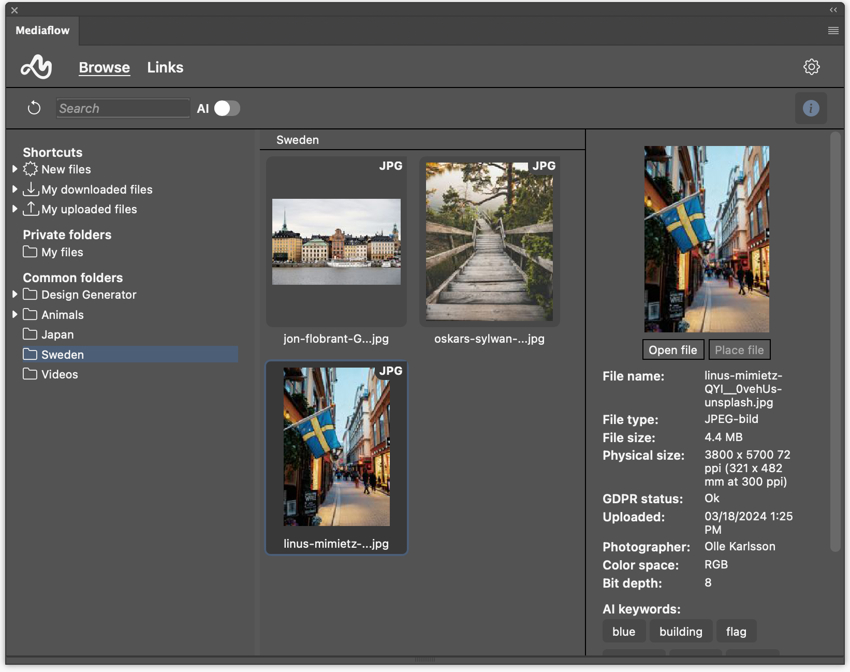
With Mediaflow's plugin, you get access to your entire media library right inside Photoshop, in a panel that becomes a natural part of your workspace. You no longer have to think in terms of "download the file and import it." Instead, you work straight from the source. You find the right content, place it in your design, and keep working without breaking your flow. That way there are fewer steps between idea and finished design, while you stay in control of your content.
Smart Objects that keep everything up to date
At the heart of the integration is the way it uses Smart Objects as a link between Photoshop and Mediaflow. When you place an image in your PSD, you don't just create a copy, it keeps its connection to the original file. That way you can always see if something has been updated and easily replace the content without starting over.
The plugin also keeps track of every linked file, even in more complex documents with lots of layers and groups. So you can work freely in Photoshop, knowing the connection to your source material is still there.
A workflow built for Photoshop
Unlike layout tools, Photoshop is rarely about managing different resolutions or previews. You work directly with the original, at full quality, and that's exactly how the integration is built. You don't have to deal with import settings or different variants of the same file. When you place an image, it happens instantly, at the right resolution, ready to use in your design.
That keeps the workflow feeling natural and stops the technology from getting in the way of the creative work. The connection only breaks once you rasterize a Smart Object. At that point the link disappears and the file is detached from Mediaflow, which is good to keep in mind as you work.
From manual steps to one connected way of working
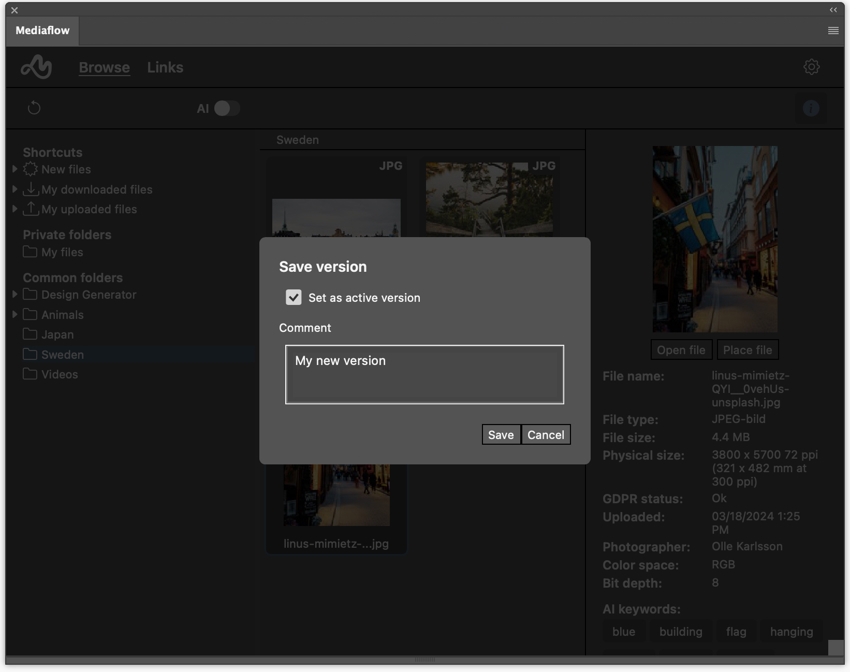
With a direct link between Mediaflow and Photoshop, the whole way you work with design and content changes. The result: you save time, you lower the risk of errors, and you get a clearer connection between the original and the final result.
Get started in minutes
Getting started with the plugin is easy:
- Install Mediaflow for Photoshop via Adobe Creative Cloud
- Open the panel via Window → Extensions → Mediaflow
- Log in and start working with your files right away
Curious to learn more? Get in touch with us. Book a demo